Install CyanogenMod 12 Android 5.0 Lollipop on Samsung Galaxy Note 3 N9005 (hlte

doing their best to provide users  with the Android 5.0 Lollipop based ROMs, or the Factory Images. In Past we have seen Nexus devices receiving the Factory Images of Android 5.0 Lollipop, along with LG G3 and Moto X 2014, while some other devices received the update via AOSP sources, some received the update via OmniROM 5.0 and most of the flagship or non-flagship device are running Android 5.0 Lollipop via CyanogenMod 12, which is by far the most stable ROM. Just like Android 5.0 based ROM on Moto G, almost every basic thing doesn’t work in these custom ROMs for now.However, Samsung Galaxy Note 3 has only Random Reboots while running CyanogenMod 12.

As I mentioned above, CyanogenMod 12 is now available for Galaxy Note 3 and you can install it by following our guide below. A lot of functions are working in it. This device will face random Reboots, especially if the device feels any sort of load on it. Home Button might be a little glitchy, and Audio Codecs might stop working during playback. Furthermore, Video Recording won’t work as long as you are using the Stock Camera App. Everything else works fine. This ROM can be stated as a Daily Driver, however, If you are interested in Other ROMs, you can Visit our Custom ROMs section or you can install this ROM on your Galaxy Note 3 by following our tutorial below. This is not an official release from Samsung but a Custom ROM. You need to install a Custom Recovery on your device to install this. Your device must be rooted. Let’s go through the ROM features and early preparations and then flash this ROM.


Early Preparations:
1. This is only for Galaxy Note 3!
This custom ROM is only for the device mentioned above. Make sure that your model number matches the one listed above. To do so, go to Settings > About Device on your device and see your model number. Flashing this ROM on any other device will result in bricking it so make sure that you meet this requirement first of all.
2. Battery should be charged at least over 60%
Make sure that your battery is charged enough to complete the flashing process. In case your battery is low and your device goes dead during the flashing process, you may end up soft bricking your device as it won’t complete the flashing process.
3. Flash a Custom Recovery and Root Your device
A custom recovery, whether a TWRP or  CWM is required to flash this ROM. Also Follow the Link to root your device: Link
4. Backup everything!
Just to be on the safe side, you may consider backing up each and everything from your Android device. This is highly recommended so that in case anything goes wrong, you still have the access to all of your data and you can restore it immediately. You may backup everything as listed below.
5. Disclaimer
The methods involved in flashing custom recoveries, roms and rooting your phone are highly custom and may result in bricking your device, and has nothing to do with Google or the device manufacturer that is SAMSUNG in our case. Also rooting your device will void its warranty and you will be no longer eligible for any kind of free device services by the manufacturers/warranty providers. In case of any mishap we may not be held responsible. Follow these instructions to the letter to avoid any mishap or bricking. Make sure that whatever you do, you are doing it at your own responsibility.

Downloads Required:

 CM 12: Link
Android 5.0 Gapps: Link

Installation Process:

  • Connect your device with PC.
  • Copy and Paste the Above zip files to the root of your sdcard.
  • Disconnect the cable.
  • Turn Off your Device
  • Open Recovery mode. How? Press and hold the Volume Up + Home + Power buttons until you see some text on screen.

CWM/PhilZ Touch Recovery Users.

  1. Back-up your ROM using the Recovery.
  2. To Perform a Back-up, Navigate to Back-up and Restore on Next screen, Choose Back-up again.
  3. Go back to Main Screen after the Back-up is complete.
  4. Then Navigate to ‘advance’ and choose ‘Wipe Dalvik Cache’, so you won’t get in any bootloop.
  5. Finally Select Wipe Data/Factory Reset
  6. Navigate to ‘Install zip from sd card’ another windows will open in front of you.
  7. Select ‘choose zip from sd card’ from the Options.
  8. Select the CM 12.zip file and confirm the installation on next screen.
  9. Go Back and Flash the Gapps.zip
  10. Once the Installation is Over, Select +++++Go Back+++++
  11. Select Reboot Now to Reboot the System.

TWRP Users.

  1. Tap On Back-Up and Select System and Data
  2. Swipe the Confirmation Slider
  3. Tap on Wipe Button and Select Cache, System, Data.
  4. Swipe the Confirmation Slider.
  5. Go back to Main Menu and Tap Install Button.
  6. Locate the CM 12.zip, Gapps.zip and Swipe the Slider To install it.
  7. Once the Installation is Over, you will be promoted to Reboot System Now
  8. Select Reboot Now to Reboot the System.

Solve Signature Verification Error:

  1. Open Recovery.
  2. Navigate to install zip from Sdcard
  3. Navigate to Toggle Signature Verification and Press Power Button and See if it is disabled or not. Disable it and then Install the Zip without any Error.
First Boot might take up-to 5-minutes, so let your device rest for 5-minutes as you do something else.

by : http://techbeasts.com

AVG Antivirus Security – Free


Free, top-rated, real-time antivirus and anti-theft protection for Smartphones & Tablets.
AVG AntiVirus FREE for Android protects you from harmful viruses, malware, spyware and text messages and helps keep your personal data safe.
Download Free Now!
Or take advantage of our limited time Easter special offer – 30% our full-featured premium app: http://bit.ly/avgSP2013Easter NOW for just $10.49!
Over 15,000,000 people currently use AVG’s AntiVirus mobile security apps. Join them now and:
– Scan apps, settings, files, and media in real time
– Enable finding/locating your lost or stolen phone via Google Maps™
– Lock/wipe your device to protect your privacy
– Kill tasks that slow your device
– Browse the Web safely and securely
– Monitor battery, storage and data package usage
AVG Antivirus FREE – mobile security software for Android. Protect your device with just one click!
With the AVG Android app you’ll receive effective, easy-to-use virus and malware protection, as well as a real-time app scanner, phone locator, task killer, app locker, and local device wipe to help shield you from threats to your privacy and online identity.
Real-time security scanner protection keeps you protected from downloaded apps and games.
AVG Anti-Virus FREE also:
– Defends against malicious apps, viruses, malware and spyware
– Identifies unsecure device settings and advises how to fix them
– Helps ensure contacts, bookmarks and text messages are safe
– Checks media files for malicious software and security threats
– Guards you from phishing attacks
– Can be scheduled to run daily, weekly, or on demand
App Features:
Anti-theft & Phone Location:
– Locate your lost or stolen device and get help finding it via Google Maps™
– Lock your device remotely via our Anti-theft service or by sending it a text message
– Set a lock screen message to help the locator find you
– Make your device ring even if it is on silent mode
Safe Web Surfing:
– Search, shop and use social networks with peace of mind knowing your identity and personal data are protected from phishing and malware
– Scan websites to see if they are harmful. If a suspicious URL address is detected, you will be redirected to a “Safe Page”
Tune-up: Monitor Battery, Storage and Mobile Data Package to Optimize Device Performance:
– Get notified when your battery is below the level you indicated and turn-off functions not in use in order to save power
– Storage optimization monitors internal and SD card usage and helps optimize storage space on your device
– Move apps or games between the SD Card and internal
– Traffic monitor – keep track of your 3G /4G data plan usage by getting notifications when you are near to reaching your monthly data plan limit
Task killer:
– Kill tasks that slow down or freeze up your device
Local wipe:
– Ability to completely wipe contacts, text messages, photos, browser history, calendar, format SD card, and restore mobile device to factory settings
– Manually select specific data and information from your device that you want deleted, such as synced email accounts, browser history and bookmarks using the Local Wipe advanced feature
App locker [trial feature for 14 days]:
– Lock apps to protect your privacy and safety or lock your device settings to secure its configuration
App Backup [trial feature for 14 days]:
– Backup apps from your device to your SD card so you can restore them whenever necessary
Antivirus Free is available in:
EN, DE, ES, FR, JA, KO, ZH (simplified & traditional), PT, RU, AR, IT, PL, CS, NL and HE

.Google is a trademark of Google, Inc., registered in the USA and in other countries. Google Maps™ and Android™ are trademarks of Google Inc.

Link


Avast where provides great security solutions against threats, malware, spyware, viruses and other malicious scripts on PCs, it has a great, feature-rich mobile security solution too. The “Avast Mobile Security for Android” is a great security solution for protecting your Android device against all known and unknown malicious scripts which otherwise may defect your Android phone or tablet’s OS and installed apps and games. The latest version of the software is Avast Mobile Security for Android v3.0.7387 which can be installed for free from Google Play Store. This is the free version of Avast antivirus for Android. If you are facing difficulties in installing the app from Google Play Store, then you can download the full APK of the app at the download link provided at bottom of this page. The APK download comes handy when Google Play Store doesn’t work on your device. avast-android Before downloading the APK file, first let’s have a look over some cool features of Avast Mobile Security for Android which have made it a great security solution for protecting Android phones and tablets against malicious scripts. FEATURES OF AVAST ANTIVIRUS FOR ANDROID Some great features of Avast Mobile Security for Android, which have got it a great rating at Google Play Store, are listed below: It keeps your device safe from all known and unknown viruses, spyware and malware The tracking feature of Avast Mobile Security helps track and find your phone whenever it is stolen Remote device lock feature locks down the phone whenever SIM is replaced Network meter keeps an eye on your device’s connectivity stats App manager manages applications Antivirus Engine scans installed apps and games for viruses and other malicious scripts It secures your privacy Block calls and SMS from unwanted numbers Web Shield filters and blocks malicious content from the web App locking feature locks down the desired apps Backup feature of Avast Mobile Security backups your contacts, SMS and other data Remote SMS feature lets you to send SMS remotely from your phone These were some common features of Avast Mobile Security Antivirus for Android devices. Download its latest version (v3.0.7387) APK at below provided link or install it from Google Play Store. Remember that below given download links will get you the free version of Avast Mobile Security 3.0.7387. If you are looking for pro features, then purchase the premium version of Avast Mobile Security from its official site. Avast Mobile Security 3.0.7387 Download Links: Download Full APK of the App (Direct Link) – Size: 7.3MB Install the App from Google Play Store Did you download the APK or installed the app? You should get the app on your Android device without any difficulty. Still if you are facing any challenges in installing Avast Mobile Security Antivirus 3.0.7387 from Google Play Store or in downloading the APK file to your computer from above provided download links, let us know in comments. We will help you in solving issues if any. - See more at: http://www.androidpot.net/avast-mobile-security-apk-3-free-download#sthash.6jkueuHv.dpuf

Read more at: http://www.androidpot.net/avast-mobile-security-apk-3-free-download
Copyright © AndroidPot
Avast where provides great security solutions against threats, malware, spyware, viruses and other malicious scripts on PCs, it has a great, feature-rich mobile security solution too. The “Avast Mobile Security for Android” is a great security solution for protecting your Android device against all known and unknown malicious scripts which otherwise may defect your Android phone or tablet’s OS and installed apps and games. The latest version of the software is Avast Mobile Security for Android v3.0.7387 which can be installed for free from Google Play Store. This is the free version of Avast antivirus for Android. If you are facing difficulties in installing the app from Google Play Store, then you can download the full APK of the app at the download link provided at bottom of this page. The APK download comes handy when Google Play Store doesn’t work on your device. avast-android Before downloading the APK file, first let’s have a look over some cool features of Avast Mobile Security for Android which have made it a great security solution for protecting Android phones and tablets against malicious scripts. FEATURES OF AVAST ANTIVIRUS FOR ANDROID Some great features of Avast Mobile Security for Android, which have got it a great rating at Google Play Store, are listed below: It keeps your device safe from all known and unknown viruses, spyware and malware The tracking feature of Avast Mobile Security helps track and find your phone whenever it is stolen Remote device lock feature locks down the phone whenever SIM is replaced Network meter keeps an eye on your device’s connectivity stats App manager manages applications Antivirus Engine scans installed apps and games for viruses and other malicious scripts It secures your privacy Block calls and SMS from unwanted numbers Web Shield filters and blocks malicious content from the web App locking feature locks down the desired apps Backup feature of Avast Mobile Security backups your contacts, SMS and other data Remote SMS feature lets you to send SMS remotely from your phone These were some common features of Avast Mobile Security Antivirus for Android devices. Download its latest version (v3.0.7387) APK at below provided link or install it from Google Play Store. Remember that below given download links will get you the free version of Avast Mobile Security 3.0.7387. If you are looking for pro features, then purchase the premium version of Avast Mobile Security from its official site. Avast Mobile Security 3.0.7387 Download Links: Download Full APK of the App (Direct Link) – Size: 7.3MB Install the App from Google Play Store Did you download the APK or installed the app? You should get the app on your Android device without any difficulty. Still if you are facing any challenges in installing Avast Mobile Security Antivirus 3.0.7387 from Google Play Store or in downloading the APK file to your computer from above provided download links, let us know in comments. We will help you in solving issues if any. - See more at: http://www.androidpot.net/avast-mobile-security-apk-3-free-download#sthash.6jkueuHv.dpuf

Read more at: http://www.androidpot.net/avast-mobile-security-apk-3-free-download
Copyright © AndroidPot
Avast where provides great security solutions against threats, malware, spyware, viruses and other malicious scripts on PCs, it has a great, feature-rich mobile security solution too. The “Avast Mobile Security for Android” is a great security solution for protecting your Android device against all known and unknown malicious scripts which otherwise may defect your Android phone or tablet’s OS and installed apps and games. The latest version of the software is Avast Mobile Security for Android v3.0.7387 which can be installed for free from Google Play Store. This is the free version of Avast antivirus for Android. If you are facing difficulties in installing the app from Google Play Store, then you can download the full APK of the app at the download link provided at bottom of this page. The APK download comes handy when Google Play Store doesn’t work on your device. avast-android Before downloading the APK file, first let’s have a look over some cool features of Avast Mobile Security for Android which have made it a great security solution for protecting Android phones and tablets against malicious scripts. FEATURES OF AVAST ANTIVIRUS FOR ANDROID Some great features of Avast Mobile Security for Android, which have got it a great rating at Google Play Store, are listed below: It keeps your device safe from all known and unknown viruses, spyware and malware The tracking feature of Avast Mobile Security helps track and find your phone whenever it is stolen Remote device lock feature locks down the phone whenever SIM is replaced Network meter keeps an eye on your device’s connectivity stats App manager manages applications Antivirus Engine scans installed apps and games for viruses and other malicious scripts It secures your privacy Block calls and SMS from unwanted numbers Web Shield filters and blocks malicious content from the web App locking feature locks down the desired apps Backup feature of Avast Mobile Security backups your contacts, SMS and other data Remote SMS feature lets you to send SMS remotely from your phone These were some common features of Avast Mobile Security Antivirus for Android devices. Download its latest version (v3.0.7387) APK at below provided link or install it from Google Play Store. Remember that below given download links will get you the free version of Avast Mobile Security 3.0.7387. If you are looking for pro features, then purchase the premium version of Avast Mobile Security from its official site. Avast Mobile Security 3.0.7387 Download Links: Download Full APK of the App (Direct Link) – Size: 7.3MB Install the App from Google Play Store Did you download the APK or installed the app? You should get the app on your Android device without any difficulty. Still if you are facing any challenges in installing Avast Mobile Security Antivirus 3.0.7387 from Google Play Store or in downloading the APK file to your computer from above provided download links, let us know in comments. We will help you in solving issues if any. - See more at: http://www.androidpot.net/avast-mobile-security-apk-3-free-download#sthash.6jkueuHv.dpuf

Read more at: http://www.androidpot.net/avast-mobile-security-apk-3-free-download
Copyright © AndroidPot

Blackmart Alpha


Blackmart Alpha is a market alternative to the Google Play Store for tablets and smartphones with Android operating system, from Blackmart you can download many applications, without the need to have an account and Google without the need for any kind of registration.

Blackmart Alpha: Functions

This market is very simple to use and offers many features to be able to download many applications.
On this market all applications are available for free download on the market Blackmart there is no application “trial” or “test”, there are only complete applications and free.
The Google Play Store is a very comprehensive market offers a number of applications, but unfortunately on Google Play Store, there are many paid apps and some are not often available for download on select smartphones or tablets even though they might be compatible.
On Blackmart this problem is not there, just download the application and try it, there are no limitations.
Its market is very intuitive and has functions for the custom search application.
Screenshot_2014-07-04-02-03-16 Screenshot_2014-07-04-02-03-20

Blackmart Alpha Download

To make the downloads Blackmart clickate the Download link located under:
Download Blackmart

Blackmart Alpha: technical prescriptions

Blackmart Alpha is an excellent substitute for the Google Play Store, being in possession of a multi-language selection is suitable for any user of any country.
Blackmart Alpha also has the following features that concernano operation:
  • extremely easy, since first use
  • Multilingual option for a global user experience
  • completely free, without the need for any payment methods
  • completely full of downloadable applications
  • fast in downloading and installation of ‘application

Blackmart Alpha contains numerous applications, and you can choose them browsing by category or by searching by a specific department.
Blackmart Alpha is always updated with the latest App published on the web in order to provide all users of the world an experience compatibilitò 360 ° on your Android device.

Blackmart Alpha: Installation

To install this alternative Android Market on Android smartphones and tablets, in most cases need to go to the settings menu, select “unknown sources” and check the box.
In this way the market as an alternative to Google Play Store (Blackmart) can be installed.
This problem in the Android arises when you try to install an application that is not from the original market (Google), so by default the box for “Unknown Sources” is not checked, then it is advisable to dull not to have more problems with the installation of applications from unknown sources such as Blackmart Alpha.

Blackmart Alpha: Information

Blackmart Alpha has many applications, but unlike the Google Play Store fail to appear only the applications that are compatible with your system and model of your smartphone or tablet.
In some cases, applications downloaded from this market alternative to the Google Play Store may not be compatible with your system, therefore you can not run them and use them.
Fortunately, the market Blackmart some applications are available in multiple versions, so if an application is not compatible, it is recommended scaricarne another version and then if you need to upgrade from within the app.

How to Root HTC One M8!

Download this video for viewing in HD on your smartphone or computer.
Click Here to Download High-Quality HD video to your Smartphone or Computer.
For those of you who want to root your HTC One M8, the steps are nearly identical to the original HTC One M7 root method except different CWM/TWRP recovery file is used.  I will be using Windows computer in this tutorial but I have provided the code you need for Mac and Linux, also you can refer to HTC One M7 Mac video and HTC One M7 Linux video.
For rooting Verizon HTC One M8, please see How to Root Verizon HTC One M7/M8 instead!
If you want to root the latest HTC One M8, here’s how to do it.  Before we begin, make sure to MAKE A BACKUP of EVERYTHING on your phone.  We will first unlock the bootloader, which will ERASE EVERYTHING on your HTC One M8, you’ve been warned!
Step 1. Go to Settings->Power and make sure “Fast boot” is checked OFF.

Step 2. Power off your HTC One M8 then hold down Volume Down and Power buttons for about 3 seconds until you see the bootloader menu like shown below:
howto-root-htcone-m8-2
Step 3. Hit the Power button once and you should now be in FASTBOOT mode.
howto-root-htcone-m8-3
Step 4. Connect a micro-USB cable from your HTC One M8 to your computer.
howto-root-htcone-m8-4
Step 5. Download fastboot.zip and unzip the file, you should get a folder called “fastboot” in your Downloads directory.
Download fastboot.zip
howto-root-htcone-m8-5
Step 6. Next, go to the CWM/TWRP recoveries section of HTCOneRoot.com and download the appropriate CWM or TWRP recovery for your HTC One M8 model.
howto-root-htcone-m8-6
howto-root-htcone-m8-7
Step 7. Copy the downloaded CWM or TWRP recovery image (file ending in .img) to the fastboot folder you unzipped earlier.
howto-root-htcone-m8-8
Step 8. If using Mac or Linux, you can skip this step as no drivers are needed.  If using Windows, open Device Manager (If you don’t know how to open Device Manager, please Google it!) and check that you have “My HTC” or “Android ADB”.  If you don’t, you need to install HTC drivers, download HTC One M8 Drivers and run it then come back to this step.
howto-root-htcone-m8-9
Step 9. Open a command prompt or terminal.  For Windows, simply type “cmd” in the search bar.
For Windows:
fastboot oem get_identifier_token
For Mac:
./fastboot-mac oem get_identifier_token
For Linux:
sudo ./fastboot-linux oem get_identifier_token
howto-root-htcone-m8-10
Step 10. Copy the identifier token to your clipboard.  If you don’t know how to do this, see my video tutorial.
howto-root-htcone-m8-11
howto-root-htcone-m8-12
Step 11. Next, go to HTCDev.com and choose “Unlock Bootloader” and hit “Get Started”.  You will need to register for the site first if this is the first time using the site.
Then choose “HTC One (M8)” and click on “Begin Unlock Bootloader”.
howto-root-htcone-m8-13
Step 12. Agree to the terms and click on “Proceed to Unlock Instructions”.
howto-root-htcone-m8-14
Step 13. Scroll all the way down and click on “Proceed To Step 5″.
howto-root-htcone-m8-15
Step 14. Scroll down and paste your identifier token you copied earlier in the box where is says, “My Device Identifier Token”.
howto-root-htcone-m8-16
Step 15. You should get a message like below if it was successful.  If not, try Step 10 again and watch my video tutorial that shows you how to copy it exactly.
howto-root-htcone-m8-17
Step 16. Check your e-mail inbox and you should have gotten an e-mail from HTC with an unlock code file.  Download this file and copy it to your fastboot folder.
howto-root-htcone-m8-18
howto-root-htcone-m8-19
Step 17. Next type in command prompt/terminal:
For Windows, type:
fastboot flash unlocktoken Unlock_code.bin
For Mac, type:
./fastboot-mac flash unlocktoken Unlock_code.bin
For Linux, type:
sudo ./fastboot-linux flash unlocktoken Unlock_code.bin
howto-root-htcone-m8-20
Step 18. Go to your HTC One M8 screen then use Volume key to choose “Yes” then hit the Power button.  Your HTC One M8 should reboot in couple seconds.
howto-root-htcone-m8-21
Step 19. Once rebooted, sign in to your HTC One M8.
howto-root-htcone-m8-22
Step 20. Repeat Step 1,go to Settings->Power and make sure “Fast boot” is checked OFF.
howto-root-htcone-m8-23
Step 21. Connect your HTC One M8 to your computer and copy over the SuperSU zip file.
Download SuperSU zip file
howto-root-htcone-m8-24
Step 22. Repeat Step 2 thru 4 and reboot your HTC One M8 into fastboot mode.
howto-root-htcone-m8-25
Step 23. Next, type:
Windows:
fastboot flash recovery PutImageFileHere.img
Replace “PutImageFileHere.img” with the image file you downloaded earlier in Step 6 and 7.
Then Type:
fastboot erase cache
For Mac, replace “fastboot” with “./fastboot-mac”.
For Linux, replace “fastboot” with “sudo ./fastboot-linux”.
howto-root-htcone-m8-26
Step 24. Choose HBOOT and select Power button on your HTC One M8′s screen.
howto-root-htcone-m8-27
Step 25. Choose “RECOVERY” and hit the Power button.
howto-root-htcone-m8-28
Step 26. You should now be in CWM or TWRP Recovery.  For CWM Recovery, choose “install from zip” and for TWRP, choose “Install” then find the SuperSU zip file and install it.
howto-root-htcone-m8-29
howto-root-htcone-m8-30
howto-root-htcone-m8-31
Step 27. Once rebooted, you should find SuperSU app in your app drawer.  Congratulations, you’ve successfully rooted your HTC One M8!
howto-root-htcone-m8-32
You can verify you have full root by downloading and running a rooted app such as Titanium Backup app on Play Store.
howto-root-htcone-m8-33
Credits:
Thanks to ChainFire for awesome SuperSU and TWRP Team for awesome TWRP recoveries.

How to Get the Android L Lock Screen on Your Galaxy S4 or Other Android Device


This year's Google I/O brought the announcement of Android L, as well as the Preview builds of L for the Nexus 5 and Nexus 7 (2013), installed using either ADB on Windows or fastboot on any computer. Unfortunately, those of us without a Nexus device are out of luck—but not entirely.
In previous guides, we've shown you how to get the softkeys, keyboard, calculator, and (really awesome) "heads up" notifications from L onto your KitKat devices. Today, we'll be making your device even more like L by applying its lock screen, thanks to developer Code Brew Labs.

Step 1: Install Android L LockScreen

Head to the Google Play Store, or hit this link, to download and install Android L LockScreen.

Step 2: Give the App Alert Access

After installing the lock screen, open the application and select Android L Notification settings. This will place you in your device's settings where you will enable the Android L alerts.

Step 3: Give the App Notification Access

Next, navigate to Settings -> More -> Security -> Notification access, and make sure that Android L lockscreen is checked.

Step 4: Enjoy Your L-Styled Lock Screen

Once you have properly enabled the app, just lock your device and check it out. You will be able to swipe your notifications away and also tap the notification to launch directly into its corresponding app.
Keep in mind that this app is a work in progress, and as such, there are a couple of things that aren't fully functional. The Dialer icon opens the Camera, the Camera icon doesn't work, and the notifications are not expandable. Future updates should take care of all these issues, so give the app a shot and let us know what you think in the comments.
By

How to Root Any Samsung Galaxy S4 in One Click


Something pretty awesome happened over the last couple of days. George Hotz, better known as Geohot, the infamous hacker known for jailbreaking iOS and exploiting the Sony Playstation 3, has brought joy to owners of just about all Android smartphones and tablets, especially those on AT&T and Verizon.
His latest offering, TowelRoot, roots Android devices in about twenty seconds, and it works for all carriers, not matter how much yours may try to lock you down. With TowelRoot, not only have root capabilities come to the masses, but Geohot has likely claimed himself over $18000 in various bounties for root exploits.
Note that the video above is showcasing the Galaxy S5, but the steps will be exactly the same for any variant of the Galaxy S4, as well as other Android devices, except for HTC and Motorola. For a more detailed explanation behind this exploit, check out Dallas' article for a full breakdown.

Step 1: Download & Install TowelRoot

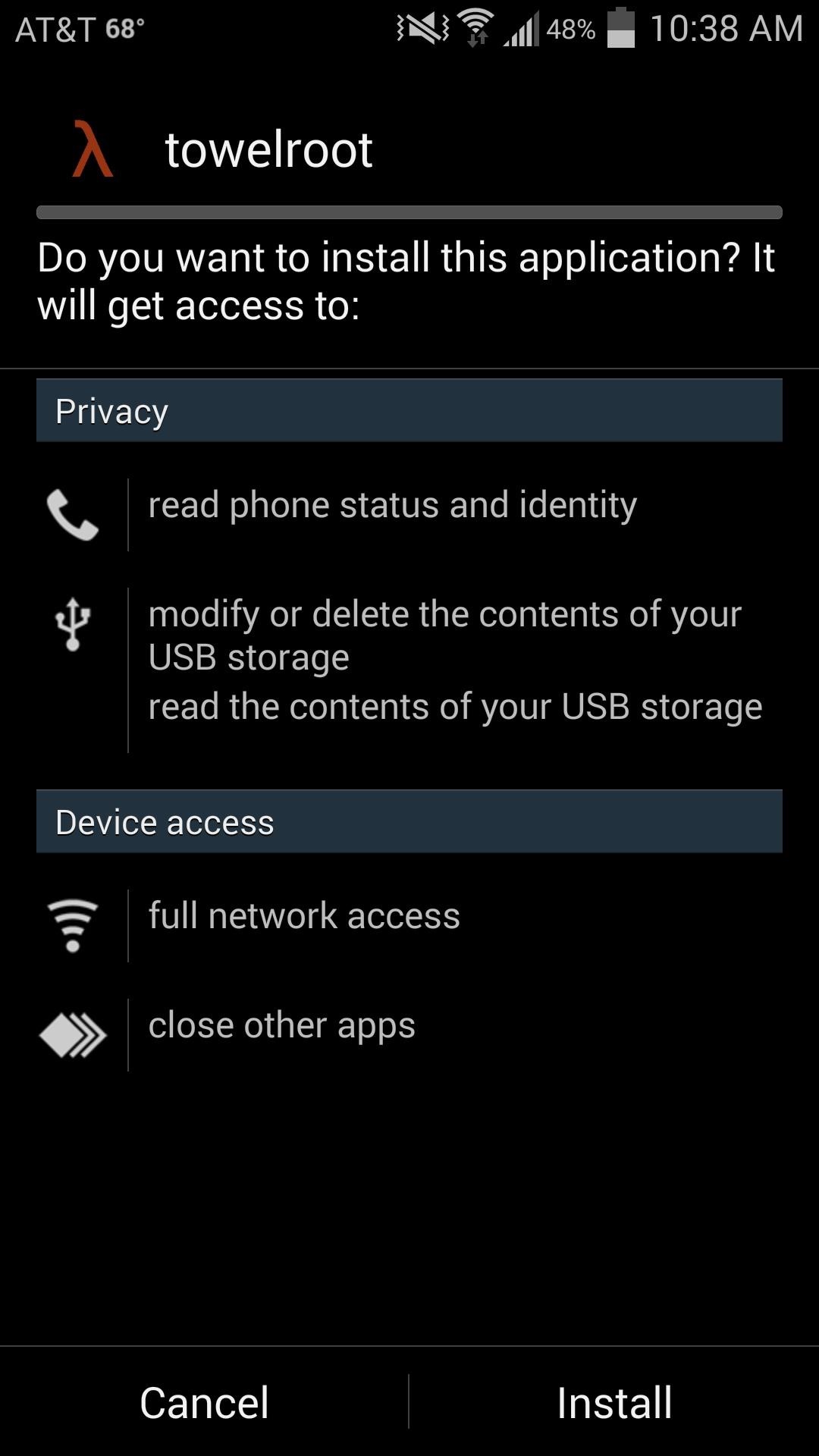
The process couldn't be easier—start by making sure you have installation from "Unknown sources" enabled, then just grab the TowelRoot apk from here and install.
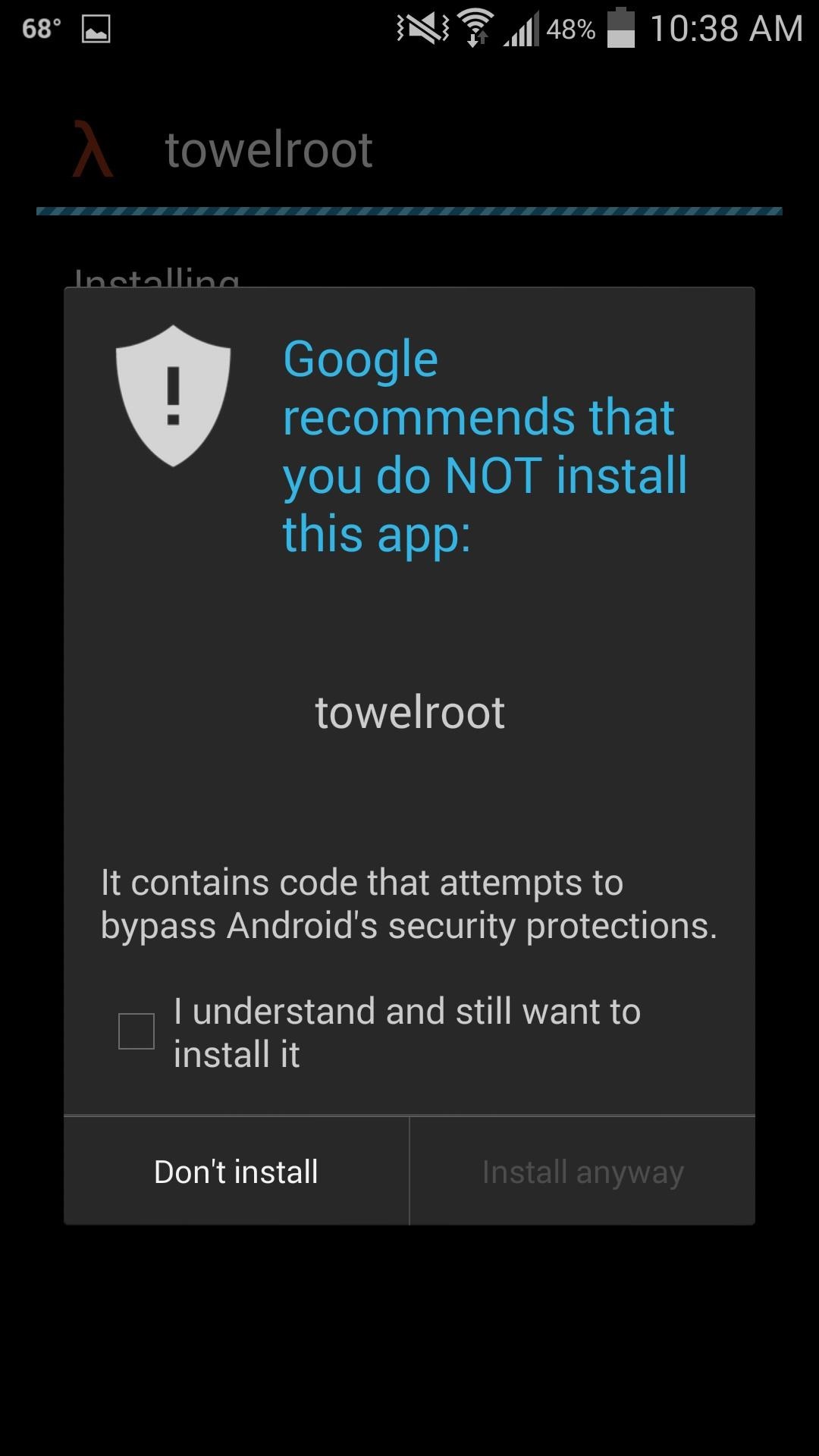
We're rooting using a pretty genius method. It basically exploits the kernel, which freezes Android, and while the OS is sitting there panicking, it asks for root privileges and Android gives them to it. Then, it copies over the necessary root files and reboots the phone. But because of the way this exploit functions, you'll see a nice scary warning when installing TowelRoot—check that you understand the risks, then hit Install anyway.

Step 2: Run TowelRoot

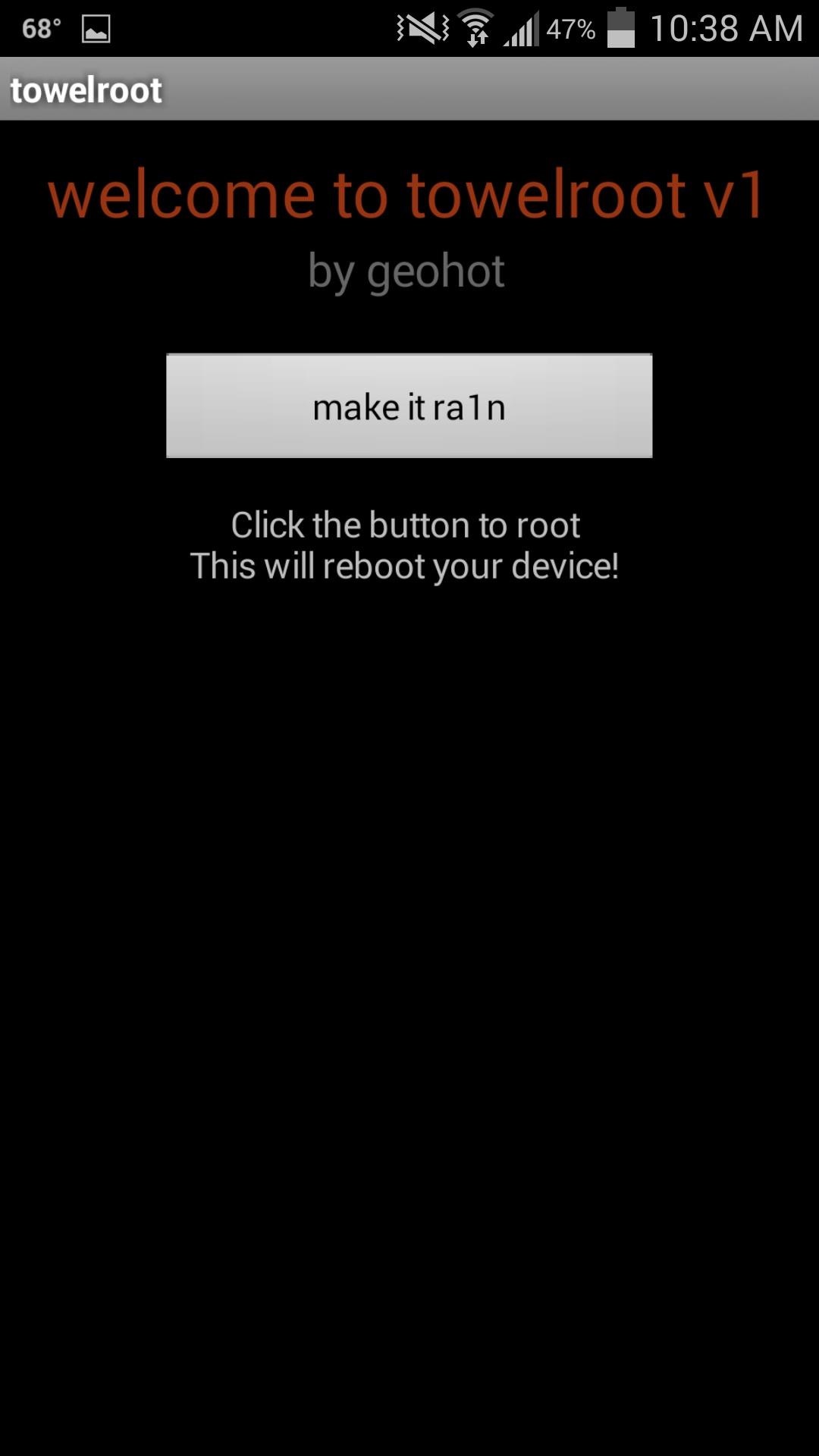
Now hit the make it ra1n button, and let the app do its thing. It'll automatically reboot your device, and then you'll be rooted!
Yes, it really is that easy. Really.

Step 3: Install SuperSU

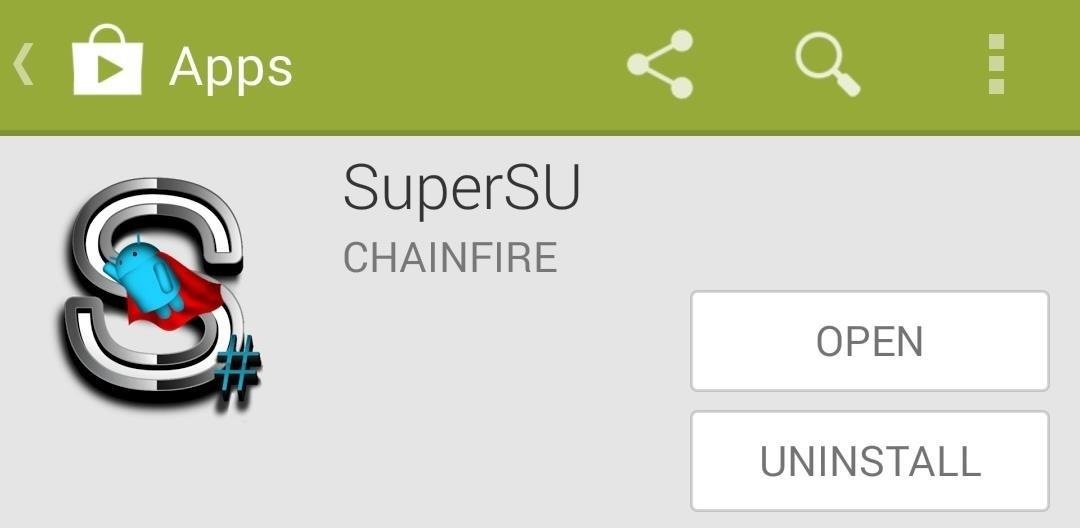
While TowelRoot will root your device, it will not install a root manager, which is critical for keeping malicious apps from gaining root access. Far and away the best root manager is SuperSU from developer Chainfire. Head to the Play Store to grab the app directly.
Install it and run. You can skip the part where the app asks if you'd like it to remove KNOX, but to each their own. Either way, you're rooted and ready to roll. And it couldn't have been easier.